1. Why dialer does not dial the first
several digits (local area code) included in the phone number?
2. How to synchronize displaying "Connected"
message with the real time dialing progress?
3. How to set dialer to dial or not to dial "1"
for numbers from the specified area codes?
4. How to set dialer to include area code when dialing
local number?
5. How to call a local number without charging it to the
calling card?
6. How can I use multiple calling cards within the same
"Location"?
7. I am writing my own program and I would like to use
Phone Dialer Pro as dialing executor, is it possible?
8. Simple script sample how to access PDP using Assisted
Telephony.
9. How to use Phone Dialer Pro from the command line?
10. What are these special dialing options: "$",
"@", "W" ?
11. How can I increase the default time delay for ","
?
12. How to set Phone Dialer Pro as the default dialer in
Windows and accept dialing requests from other applications?
13. How to sort Speed Dials alphabetically?
14. How to prevent Phone Dialer Pro from being loaded on
Windows startup?
15. How to check what Phone Dialer Pro version/revision I
have?
16. How to make dialer automatically hang up a line after
connecting a call?
17. How to use dialing pad to add on to the existing phone
call?
18. How to dial phone numbers selected in any document or
browser page?
19. How to setup dialer to work with ISDN cards or non-standard hardware?
Q. How to prevent Phone Dialer Pro from being loaded on Windows
startup?
A. In the
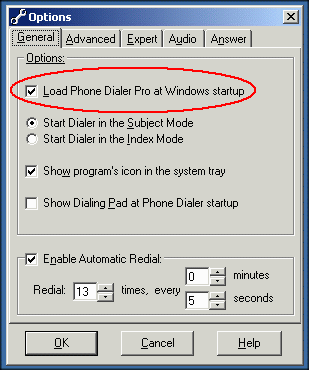
Tools>Option>General menu uncheck the box: "Load Phone Dialer Pro at Windows
startup", as shown in the picture below:
Figure 1.
Q. How to call a local number without charging it to the calling card?
A. In the
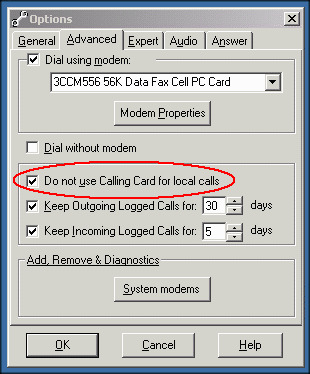
Tools>Option>Advanced menu check the box: "Disallow use of Calling Card for
local calls", as shown in the picture below:
Figure 2.
Q. How to synchronize displaying "Connected" message with the real
time dialing progress?
A. Busy signal
detection is very tricky and depends on many factors. It is very difficult to consider all
the different modem types or computer hardware. To provide universality Phone Dialer
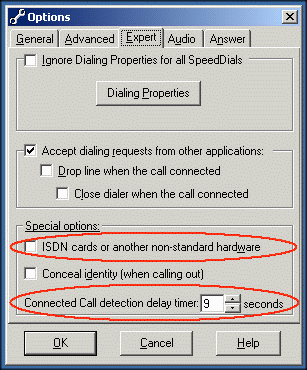
Pro allows the user to adjust the proper timing by the setting "Connected Call
detection delay timer" located in the Tools>Options>Expert menu, see the
picture below:
Q. How to sort Speed Dials alphabetically?
A. To be able to
sort Speed Dials alphabetically the Dialer should have at least one Sub-Title button,
always the first speed dial button on any page, which has had an asterisk (*) typed in as
the first character - with or without any other name or instead of a name.
Note: Sorting happens between one asterisk button and the next, If you prefer to have any
first page (either in alphabetical or Subject Heading modes) unsorted to display speed
dial buttons you do not wish to be sorted and to remain at the start of that page as you
entered them by choice, do not place an asterisk in the first speed button of that page.
Upon clicking on the Asterisk button the dialer should ask for permission to sort all the
underlying Speed Dials. Underlying means all buttons belonging to that subtitle. If there
is only one Sub-Title Button all the Speed Dials buttons under that single Tab will be put
in alphabetical order (starting from button #2 to the last button #996).
If you have marked another Sub-Title - under the next Subject Heading tab for example,
then only those Speed Dials belonging to that Sub-Title and Heading will be sorted. Thus,
between the speed dial button you have clicked to trigger the sort and the next valid
Asterisk button.
A Sub-Title can only be the first Speed Dial button on any page which will not be
used to dial but to trigger sorting of your Speed Dials within a Tab/Heading.
Again, to create a Sub-Title simply place an asterisk (*) in front of the first Speed Dial
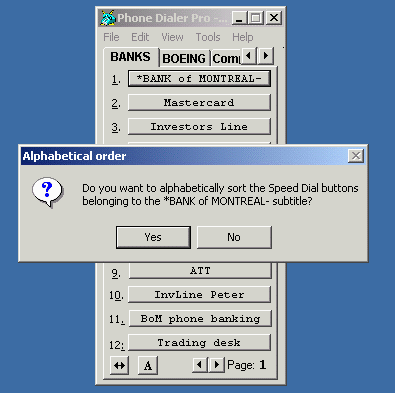
button's title, in the same way you would enter a name. Clicking on the Sub-Title button
will reveal a new window asking for confirmation to sort, see the picture below:
Figure 4.
Q. How to set Phone Dialer Pro as the default dialer in
Windows and accept dialing requests from other applications?
A. Phone Dialer Pro can
make calls on behalf of other applications. It will accept dialing requests from
those applications, which use Microsoft's Tapi Assisted Telephony standard for Windows
such as personal managers (PIM's), address books, databases, spreadsheets and word
processors (some macro and scripting may be required).
To enable, check "Accept dialing numbers from other applications" from
>Tools>Options>Expert, as shown on Figure 3.
Phone Dialer Pro does not need to be open (active) when being accessed by another
application.
All dialing requests are queued and executed sequentialy after each completed call.
back to the top
Q. How
to set dialer to dial or not to dial "1" for numbers from the specified area
codes?
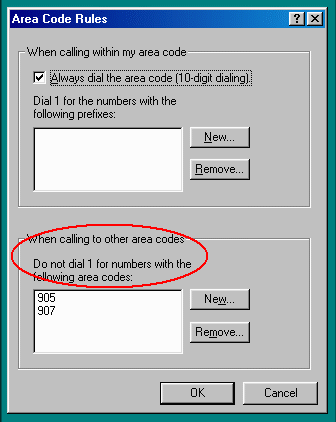
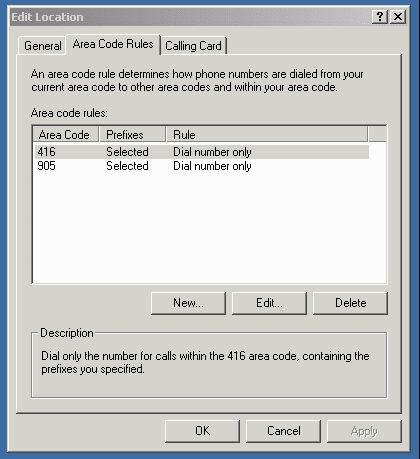
A. In the >Tools
> Dialing Properties select Area Code Rules and fill the appropriate boxes, as shown
below:
Figure 5.
in Windows 98/SE/ME:
and in Windows 2000:
Users may encounter a problem when the same area
code is used with a local call or a long distance call. For instance: the local area
number is "905" but to dial outside the local zone the area number must be
prefixed with "1", so the dial number will start with "1 905".
In such case user should set in Dialing Properties: "Not to dial '1' for selected
area codes" and insert those area codes in the appropriate field.
Next, when programming the Speed Dial button for the outside area call (phone number
should begin with "1") user should place the check mark in "Ignore Dialing
Properties" box, which will make PDP to dial a "1" for that particular
Speed Dial button. back to the top
Q. I am writing my own program and I would like to use Phone Dialer
Pro as dialing executor, is it possible?
A. Yes. If your program
uses Tapi Assisted Telephony then read FAQ #12 and FAQ #8.
Otherwise you can revoke Phone Dialer Pro by placing the phone number (dialing string) as
the trailing parameter in the full path location of the executable, as shown in an example
below (phone number does not need to adhere to any format) :
c:\Program Files\Phone Dialer Pro\phonepro.exe /(785)-555 1234 For
more, see FAQ #9.
You may also consider using Dial Engine Pro.
back to the top
Q. Simple script sample how to access PDP using Tapi Assisted
Telephony.
A. In visual basic
declare:
Declare Function tapiRequestMakeCall Lib "TAPI32.DLL" (ByVal lpszDestAddress As
String, ByVal lpszAppName as String, ByVal lpszCalledParty as String, ByVal lpszComment as
String) As Long
Then in your code when it is ready to dial insert:
Dim PhoneNumber as String
Dim lTapi as Long
lTapi =
tapiRequestMakeCall(PhoneNumber,"","","")
if lTapi <> 0 then there is an error and you may to provide some error handling.
PhoneNumber is of course the dialing string and must be inclosed in "" :
PhoneNumber = "555 234 9876"
. back to the
top
Q. How to check what Phone Dialer Pro version/revision I have?
A. Locate the
phonedialerpro.exe file in your computer. Normally it can be found in the directory "c:\Program Files\Phone
Dialer Pro\". Right click on the phonedialerpro.exe icon. From the pop-up menu
select properties. Click on the "Version" tab. Read the "File version"
info. back to
the top
Q. Why
dialer does not dial the first several digits (local area code) included in the phone
number?
A. Phone Dialer
Pro is smart enough to recognize whether the dialed number is a local one or not. If
it a local call and the number inludes the area code but the checkbox in Dialing
Properties>Area Code Rules: "Always dial the area code" (Win98) or
"Include the area code" (Win2000) is not checked, dialer will remove
that area code digits from the calling number. On the other hand, when the dialing number
does not include local area code but that option is checked, dialer will
automatically insert local area code number.
Users with Windows 98 and higher should have that option selected. Windows 95 users do not
have that option available and to avoid that problem should select: "Ignore Dialing
Properties" inside Speed Dial Edit window and manually include area code number.
back to the top
Q. How to set dialer to include area
code when dialing local number?
A. Windows 98/98SE/ME
users should checkbox: "Always dial area code" in Dialing Properties>Area
Code Rules;
Windows 2000 users should checkbox: "Include the area code" in Dialing
Properties>selected Location>Edit>Area Code Rules
Windows 95 users are out of luck and should select "Ignore Dialing Properties"
and manually add area code. back to the top
Q. How
can I use multiple calling cards within the same "Location"?
A. Each
Speed Dial can be programmed to use a different Calling card available from pull down list
in Speed Dial Edit window, however customizing, changing or adding a new Calling
card should be done prior to it inside Dialing Properties window.
Selected Calling card in Speed Dial Edit window has priority over Calling card selected in
Dialing Properties but if "None (Direct Call)" is choosen in Speed dial Edit and
there is a selected Calling Card in Dialing Properties the latter one takes over. For the
dialer not to use the Calling Card at all, both places should have be selected "None
(Direct Call)". back
to the top
Q. How to use Phone Dialer Pro from the
command line?
A. To enable, check
"Accept dialing numbers from other applications" from
>Tools>Options>Expert, as shown on Figure 3.
Phone Dialer Pro can be used as a dial engine by accepting dialing requests at the command
line:
\application path\phonepro.exe /(123)-555 6789
or
\application path\phonepro.exe (123)-555 6789
the "/" is not necessary and the dialing sequence does not need to follow any
specific format.
Preceeding a phone number with the double characters "XX" will force dialer not
to use Dialing Properties (the number will be dialed exactly as entered).
Preceeding a phone number with the characters "ZZ##" will force dialer to use
specific Calling Card for that number (ignoring selected Calling Card in Dialing
Properties), where ## is Calling Card ID number.
For example to dial 1(876) 123-4567 using Calling Card: "US Sprint Direct Dial via
10103331" :
\application path\phonepro.exe /ZZ09 1(876)
123-4567
It is also possible to invoke a selected Speed Dial from the command line. This feature is
very useful for the users wanted to automate dialing process by selecting different
Dialing Properties per call (different Calling Cards for example).
To dial a selected Speed Dial from the command line:
the trailing parameter format is:
/SD+S for Subject
(I for Index) mode + Tab number (including leading 0) + Speed Dial button number
example 1: \application path\phonepro.exe /SDS13657 --->
SpeedDial -> Subject mode:Tab=13, button=657
example 2: \application path\phonepro.exe /SDI0144 --->
SpeedDial -> Index mode: Tab=01, button=44
There are not spaces allowed in this format and the all characters must be upper case.
To fully automate dialing process Phone Dialer Pro has the following available options
after making a phone call:
1. automatically droping phone line (after specified time)
2. close Phone Dialer Pro or
3. stay minimized (on taskbar or Systray) after manually clicking OK button confirming
connected call.
Those options are available from the Tools>Options>Expert menu.
back to the top
Q. What are these special dialing
options: "$", "@", "W" ?
A. These are
modem's special dialing options:
-wait-for-billing-tone ($)
-wait-for-quiet (@)
-wait-for-dial tone (W)
Wait-for-billing-tone can be used when dialing with a Calling Card.
Suppose a person with a calling card wants to make a long distance call. The normal
process is to dial a prefix code, followed by the area code and a phone number. The caller
then waits to hear a "bong" on the line (the billing tone). After hearing the
bong, the caller enters the calling card number.
The following example shows how to automate such dialing sequence:
1 905 777 4321 $ 1234567890987654321
Wait-for-quiet tells the modem to detect "quiet" on the line,
which usually means no tones (such as ringing or busy tones and no other sounds (such as
human voices). A modem that supports wait-for-quiet is useful for making calls to
automated phone systems, such as voicemail systems or automated banking systems.
The following example shows how to use wait-for-quiet:
777 4321 @ 1,,1,,3,,2,6578768934210564,0500,72779673#
Another dial option is wait-for-dialtone. If a modem supports this
option, it pauses after a W character in the dial string until it detects
a dial tone. Once it detects a dial tone, it dials any remaining digits after the W
character. This option is especially useful in hotels or large companies, where it is
usually necessary to dial a special prefix digit, such as an 8 or 9, to reach an outside
line.
The following example uses wait-for-dialtone:
9 W (905) 777 4321
In the wait-for-quiet example, both the @ and the comma
are used for pauses.Typically, user should use the @ when unsure of the
length of the pause or when the length of the pause can change and use commas when the
length of the pause is consistent and rarely changes.
back to the top
Q. How can I increase the default time
delay for "," ?
A. The modem's default
time delay for "," is approx. 2 seconds depending on modem's
model.
How to change this value user should consult the modem's manual, however in most of
the cases the following init string should work:
ATS8= # where # is the number of seconds required
This string should be entered in the Modem's >Properties >extra initialization
command field accessible from Tools>Options>Advanced menu.
back to the top
Q. How to make dialer automatically
hang up a line after connecting a call?
A. Select the
options: "Accept dialing numbers from other applications" and "Drop
line when the call connected" from >Tools>Options>Expert, as shown on Figure 3. When done, you may exit PDP or keep it active. The next
step is to use another application to send dialing request. That can be your own code, see
FAQ #8 or another Assisted Telephony application as for example WAB
(Windows Address Book). back to the top
Q. How to use the dialing pad to
add on to an existing phone call?
A. The user can send
additional digits using the dialing pad when the dialed phone number ends with a
semicolon: ";".
For example: (905)-567 0443;
This can be useful in situations when the user does not want to send additional digits
together with the phone number.
This method works fine with normal modems on Windows95/98 however it may not always work
on Windows2000 (depending on the used hardware). back to the top
Q. How to dial phone numbers
selected in any document or browser page?
A. In >Tools > Options > Advanced tab the option:
"Enable 'Copy' as a Dial command" must be checked.
Dial Engine Pro must be active (it's icon visible in Systray).
Right click on selected (highlighted) phone number in any document, browser page or
another window and from the pop-up menu click on "Copy". Dialing will start
immediately.
Note
� Dial Engine Pro will dial only when the selected
dialing string starts with the number or one of the following characters: "(" ,
"#" or "*".
For example selected string: (905)-677 4341,,,2808 will be dialed and 905.677.4341,,,2808
will be dialed as well, but string: Work(905)-6774341,,,2808 will be ignored by Phone
Dialer Pro.
� "Copy" function in Windows is not impaired by Phone Dialer Pro. It can be
still used for "copy" and "paste" operations. back to the top
Q. How to setup dialer to work with
ISDN cards or non-standard hardware?
A. In > Tools > Options > Expert tab the option: "ISDN
cards or another non-standard hardware" must be selected, as shown on Figure 3. back to the top
Copyright � 1999-2002 Jacek Kozlowski. All rights reserved.
Last revised: January 25, 2002